Share a conversation link in Munia
Share a link to an AI conversation securely. A simple tutorial in a few clicks.
Updated on 2026-03-30
You can share a Munia conversation:
-
- to circulate it among your colleagues for support purposes,
-
- or to pass along artificial intelligence generated content to your collaborators.
⚠️ Be careful with data: before sharing, make sure the conversation contains no sensitive or confidential information.
Tutorial in 3 steps
-
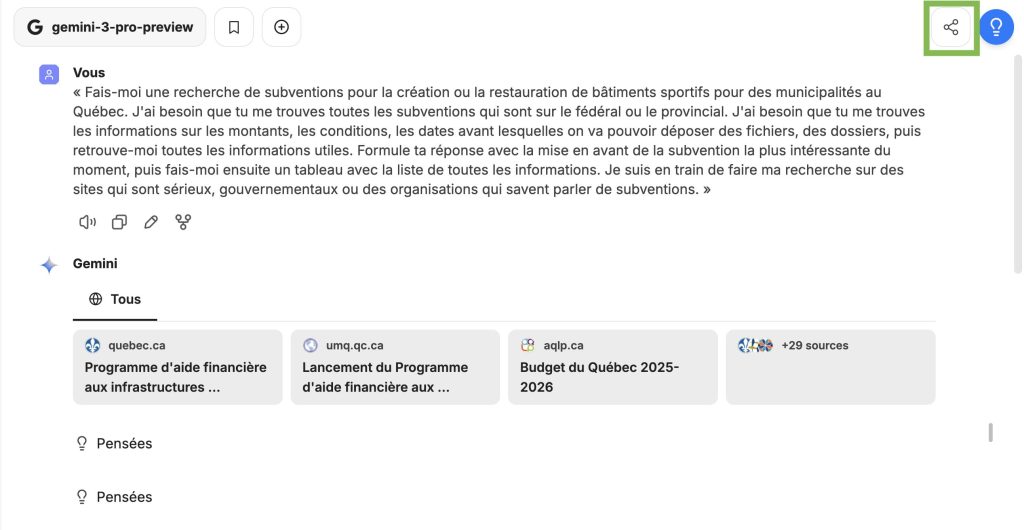
- 1 - Click the Share icon (top right).
-
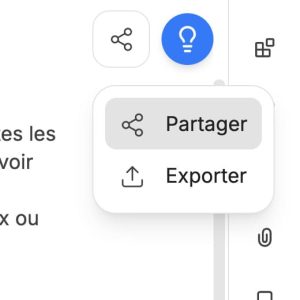
- 2 - Select Share.
-
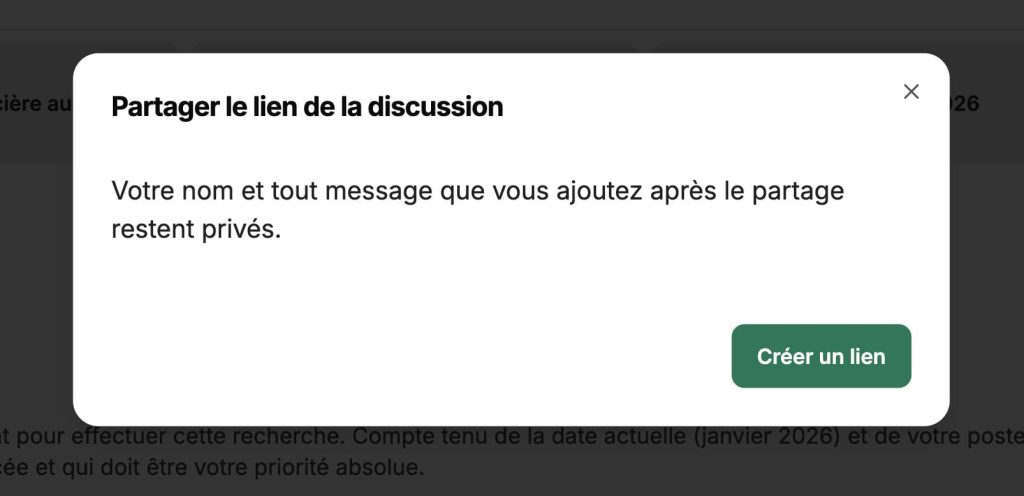
- 3 - Click the green Create link and copy link button
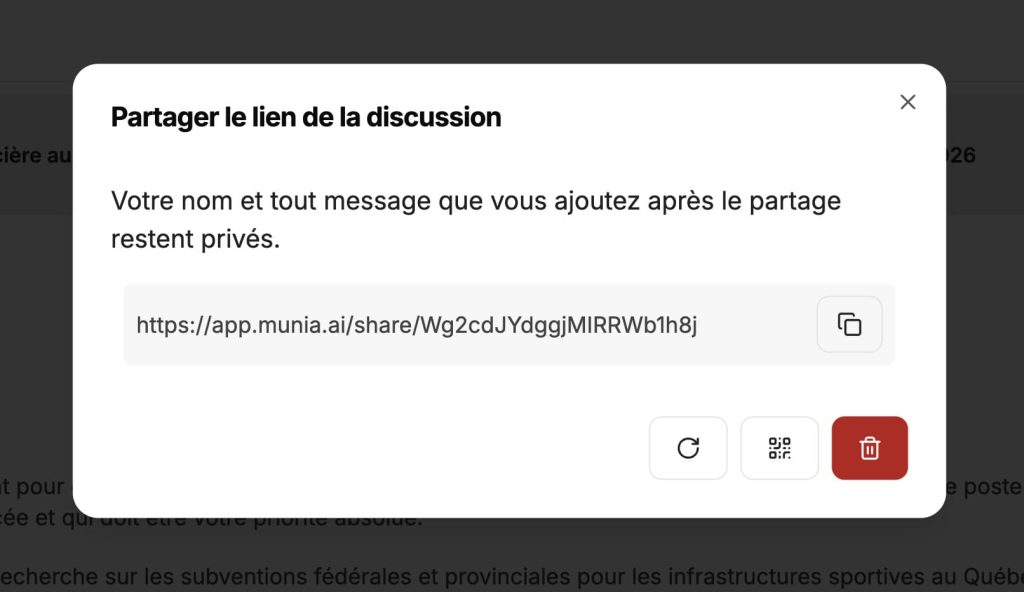
Good to know
-
- People who receive the link cannot edit the conversation.
-
- The link only displays the content available at the time it was created.
-
- New iterations do not update automatically: you must delete the old link and generate a new one.
Manage your share links
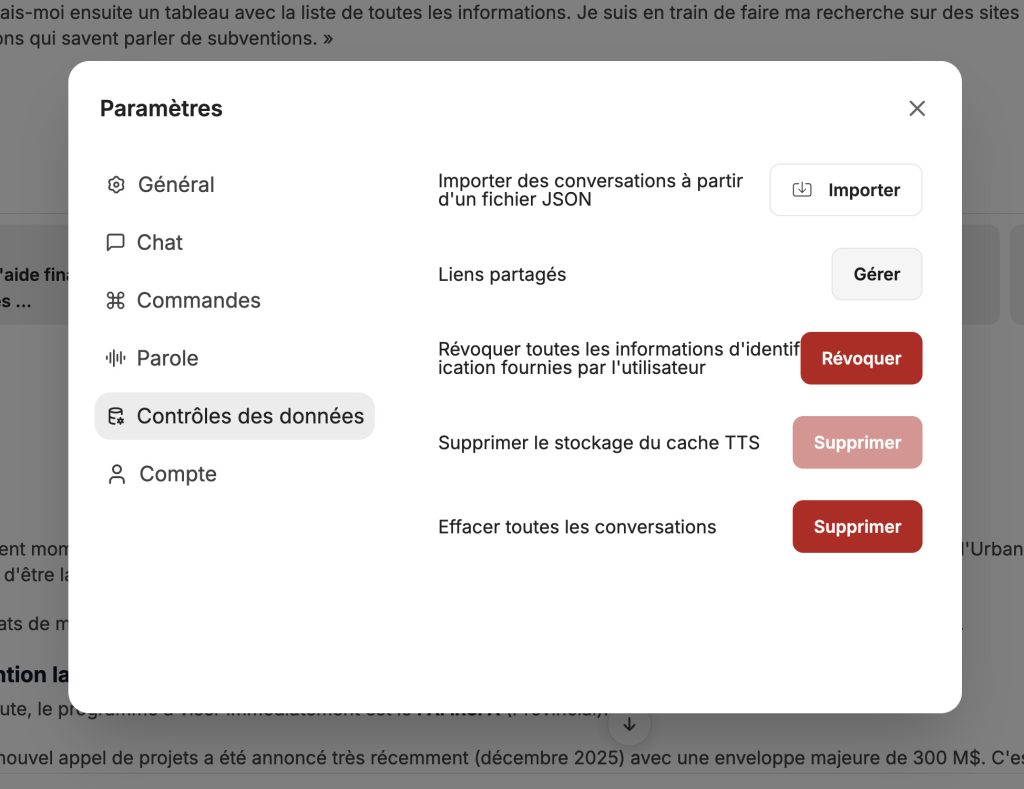
To manage your share links, start by going to your account by clicking your first and last name at the bottom right, then select "Settings". Next, open the "Data controls" page in the menu options on the left.
You can view the list of share links and delete them if you wish using the trash icon, or reopen your conversation using the message bubble to the left of the trash icon.
[caption align="alignnone"]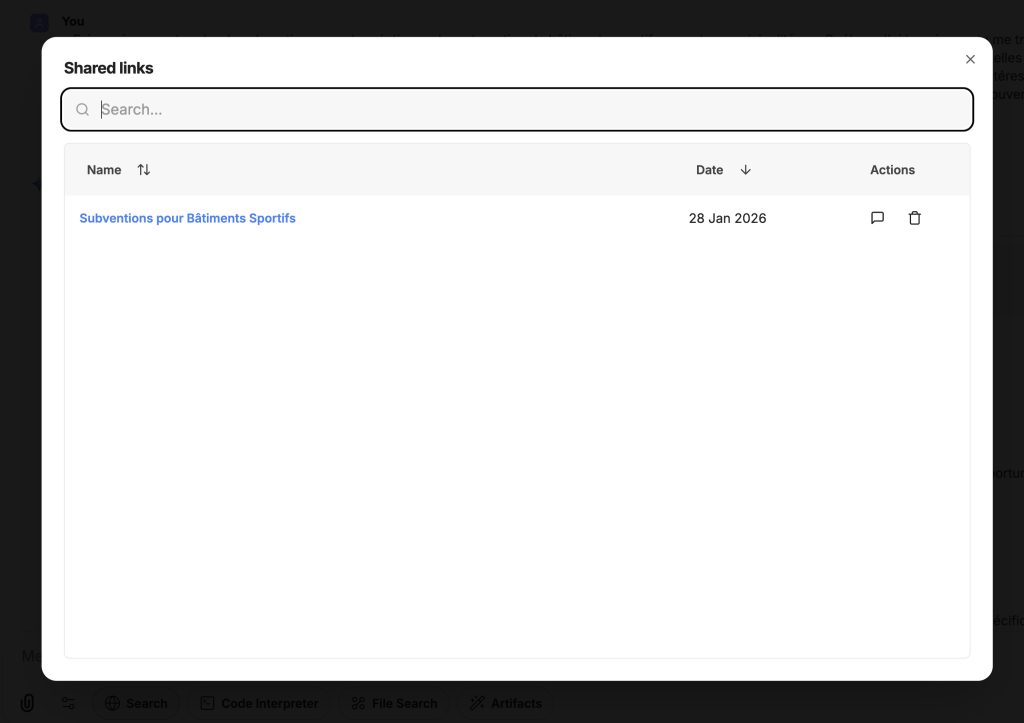 Screenshot[/caption]