How to display the options / tools in Munia
When you use Munia, several powerful tools are available but are not always visible by default. Here is how to access them easily.
Updated on 27 Janvier 2026
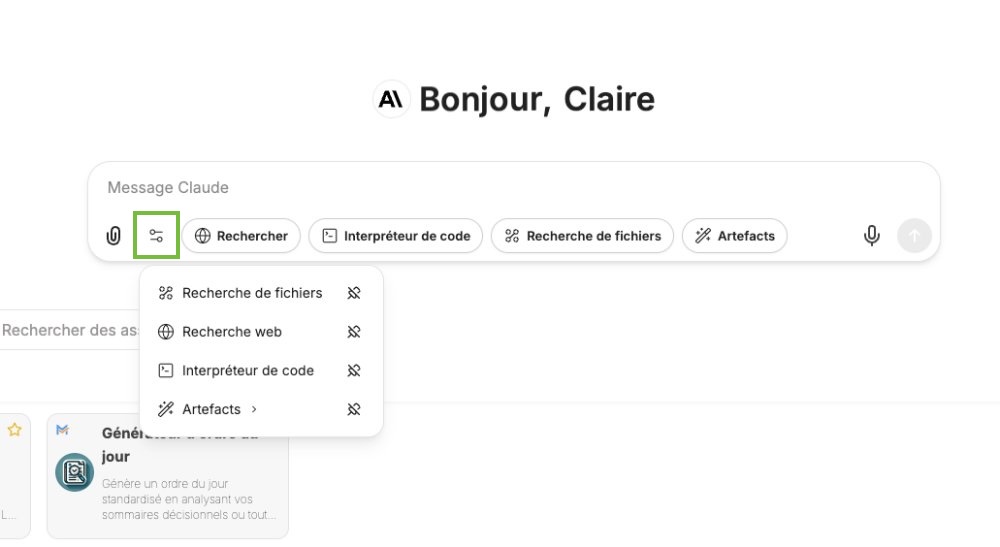
Locate the tools icon
In the conversation window where you send your messages:
- Find the paperclip icon (📎) used to add attachments
- Just to the right, you will find an icon showing two sliders
- Click this icon to display all the available options
Available options
Once the menu is open, you will have access to several features. To display them at all times, you can click the pin icon to pin them.
Here are the different tools offered:
File search
- Lets the AI search through the documents you have uploaded
- Ideal for analyzing PDF, Word or Excel files
Web search
- Enables the AI to look up current information on the internet
- Useful for obtaining recent data such as grant programs
Code interpreter
- Lets the AI generate files (Word, PDF, Excel, CSV)
- Handy for automatically creating tables, charts or documents
Artifacts
- Creates structured, reusable content
- Generates editable formats and interactive tools with visual interfaces
Key points
These options can also be enabled by default in your custom assistants. If you use certain features regularly, configure them directly in your assistants so you do not have to turn them on every time.