Regenerating an artificial intelligence response in Munia
Learn how to request a new AI response with a single click in Munia.
Updated on 2026-03-30
Why regenerate a response
When you use Munia, each artificial intelligence model available on the platform can produce different results. It is entirely normal for a generated response not to match exactly what you expected. The regeneration feature lets you request a new response without having to start your whole conversation over from the beginning.
How to regenerate a response in 2 steps
Prerequisite: You must have started a conversation in Munia and received at least one AI-generated response.
Step 1 Locate the response to regenerate: In your conversation, identify the message generated by the artificial intelligence that you want to redo.
Step 2 Hover over the message with your mouse: Place your cursor on the AI-generated response. Options will appear at the bottom of the message.
Step 3 Click the regeneration icon: At the very bottom of the response, you will see an icon showing arrows turning in a circle. Click it to request a new response.
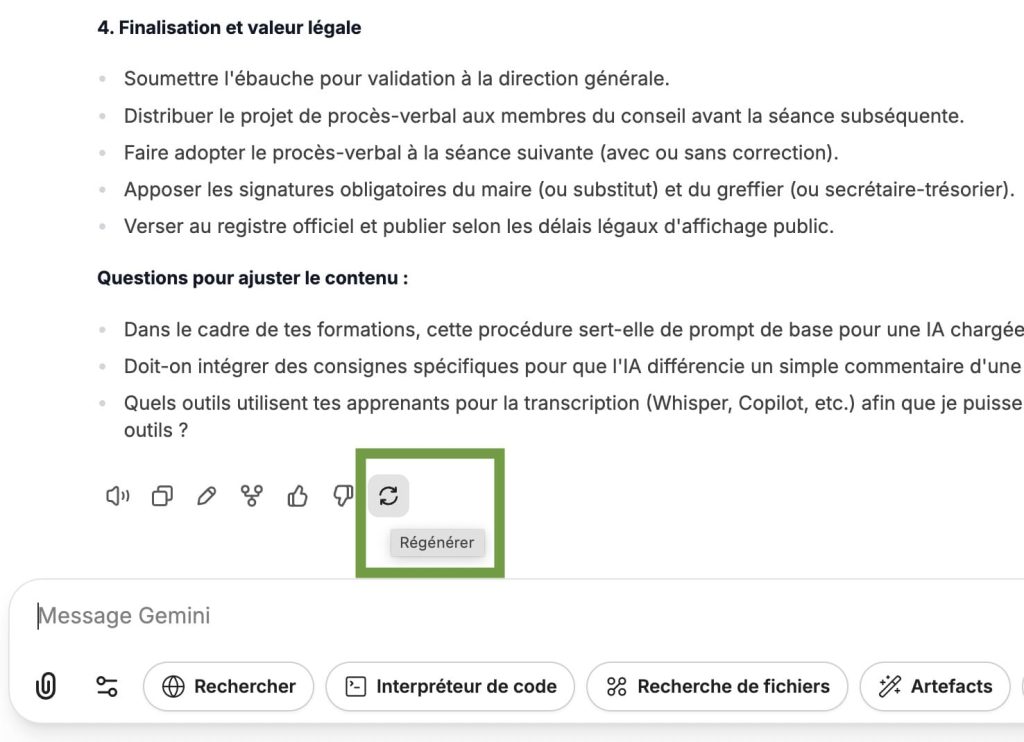 Expected result: A new response is generated by the artificial intelligence and appears in your conversation, either replacing or adding to the previous one.
Use cases:
Case 1: You changed an assistant's instructions
If you are testing a Munia assistant and decide to change its instructions along the way, you can go back to your conversation and request a regenerated response. This lets you directly compare the effect of your changes on the quality of the responses produced, without having to start a new conversation.
Case 2: You want to try another artificial intelligence model
If the response you get from one AI model does not suit you, you can select another one directly from the platform's drop-down menu, then click the regeneration icon. Munia will then produce a new response using the AI model you just chose, which lets you compare results based on your needs.
Please note:
Regeneration always takes place within the context of the current conversation. Previous exchanges remain visible, which makes it easier to compare the responses obtained.