Sending your first message
Learn how to write and refine your first messages to the AI in order to get useful, accurate answers.
Updated on 6 mars 2026
Key concepts
In Munia, you communicate with the AI by sending it prompts (also called queries). A prompt is simply a written instruction you submit so that the AI generates an answer. The more precise your prompt, the more relevant the answer will be.
Steps
Step 1: Start a new conversation
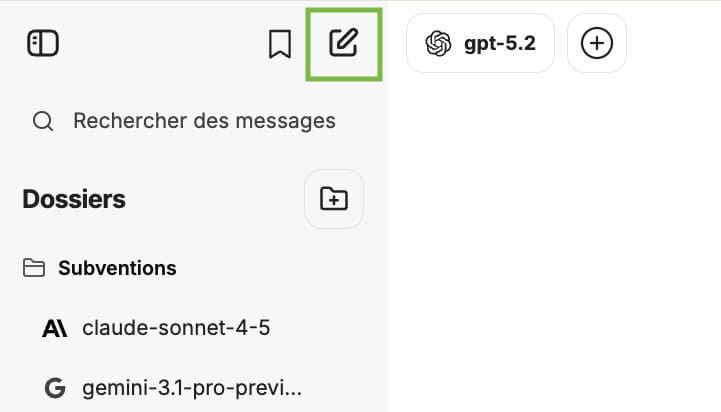
Click the « New conversation » button to start over with the AI. This prevents earlier exchanges from influencing your new requests.
Step 2: Choose an artificial intelligence model
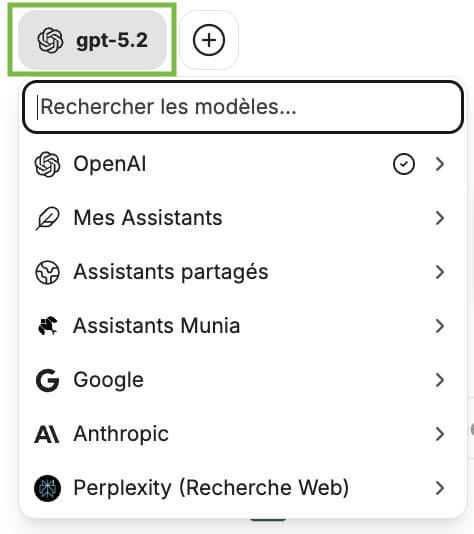
Select the model you want from the list available. The name of the chosen model is displayed in two places in the interface to confirm your selection.
Step 3: Write and send your first prompt
Type your question or instruction in the text field. For example: « What is the notice period for calling a special meeting? » Press Enter or click the send button.
Step 4: Assess the answer you receive
Read the generated answer. It is perfectly normal for the first answer not to be perfect. You have two options for improving it.
Option A: Add context in a new message
If the answer is incomplete or too general, send a follow-up message to specify your context. For example: « This is a regional county municipality. » The AI takes the whole conversation into account and adjusts its answer accordingly.
Option B: Edit your original prompt
Hover over your first message with the cursor to reveal the action icons. Click the pencil icon (« Edit »), add your details directly in the prompt, then click « Save and submit ». The AI generates a new answer based on this corrected prompt.
Step 5: Navigate between the versions of your prompt
Munia keeps every version of your prompts. An indicator such as « 3/3 » tells you that you are on the third version. Use the left and right arrows to review earlier versions and their respective answers.
Step 6: Regenerate an answer
If you are happy with your prompt but not with the answer, click the « Regenerate » button located under the answer. The AI produces a new answer from the same prompt.
Expected outcome
By the end of this tutorial, you are able to send a first message to the AI, refine your prompt based on the answer received, and navigate between the different versions of an exchange.
Going further 🚀
🎥 Next tutorial ➡️ 5 – Uploading, OCR and Search