Archive and unarchive your conversations in Munia
Learn how to organize your history by archiving completed conversations and how to find them again easily when you need them.
Updated on 2026-01-27
Archive a conversation
Archiving a conversation lets you clean up your history without permanently deleting your exchanges.
Steps to follow:
- Find your conversation history in the left-hand panel of Munia
- Locate the conversation you want to archive
- Click the three small dots next to that conversation
- Select the "Archive" option
- The conversation immediately disappears from your main history
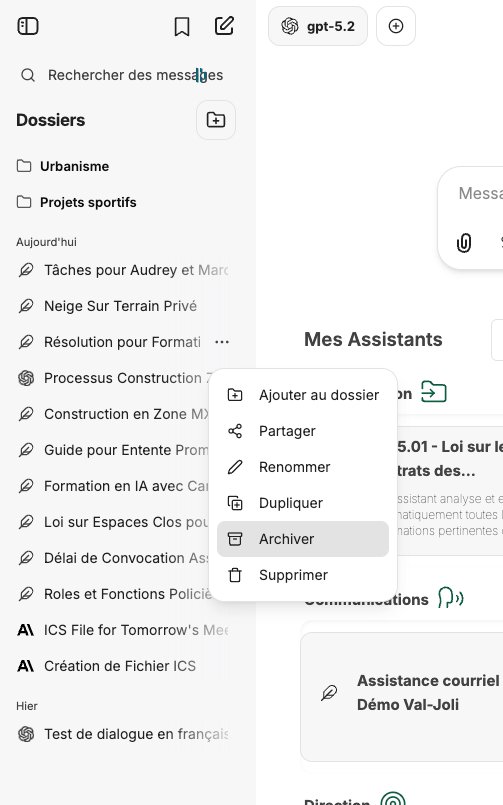
Result: Your conversation is now archived and no longer appears in the main list, which lets you keep a clean and organized history.
Unarchive a conversation
Need to find an archived conversation? Here is how to access it and restore it to your history.
Steps to follow:
- Click your name at the bottom left of the interface
- In the menu that appears, select "Settings"
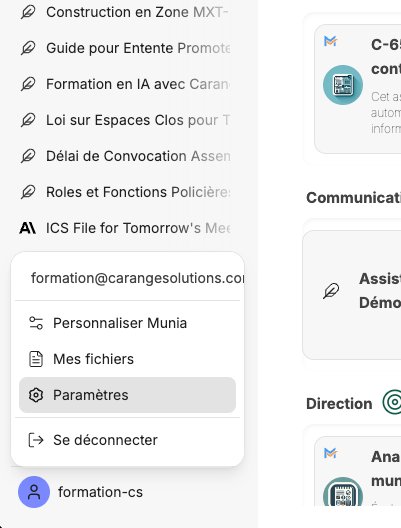
- You automatically land on the "General" tab (the first tab by default)
- Scroll down to the bottom of the page
- Locate the "Archived conversations" section
- Click the "Manage"
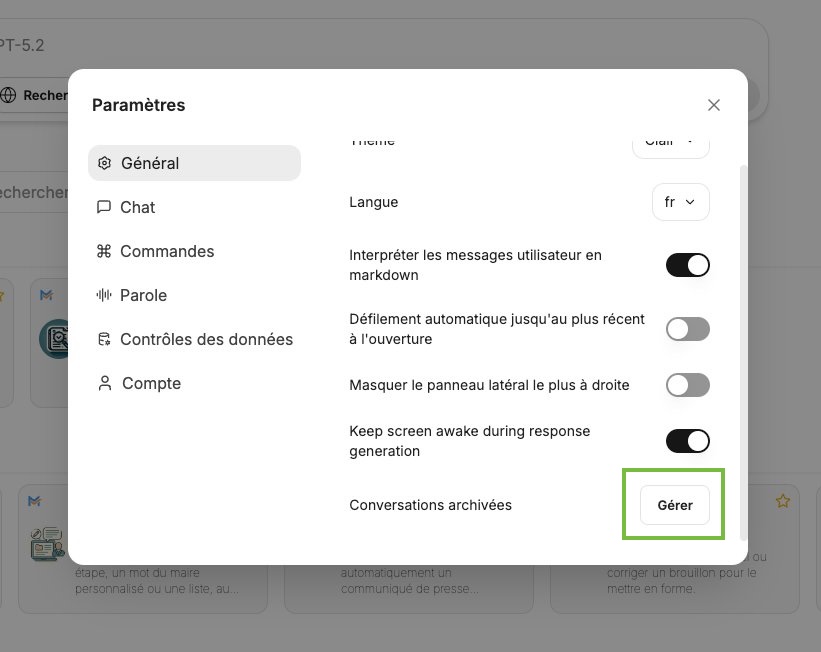 button
 - A list of all your archived conversations appears
- Identify the conversation to unarchive
- Click the option to unarchive that conversation or to delete it
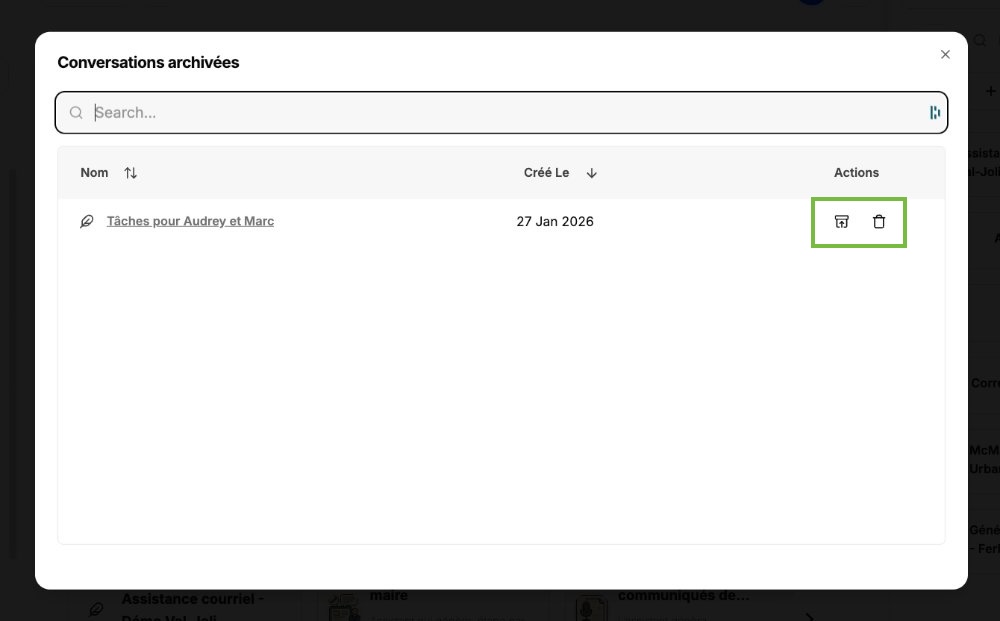
- The conversation returns to your main history
Result: Your conversation is visible and accessible again in the history on the left.
Practical tip: Archive completed conversations regularly to keep an organized workspace. You will always be able to find them easily through the settings.