How to generate a file in Munia
Learn how to generate files using the code interpreter.
Updated on 2026-03-30
Common problem encountered
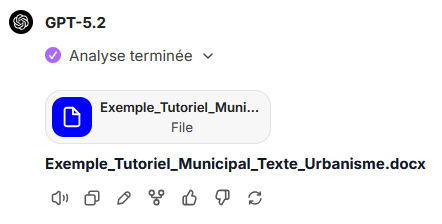
Sometimes the artificial intelligence confirms that it has generated a document (Excel, PDF, Word, etc.), but no file is available for download. This happens when the code interpreter is not enabled.
What is the code interpreter?
The code interpreter is a tool that allows Munia's artificial intelligence to run computer code in order to actually create files. Without this tool enabled, the AI can only simulate the creation of documents without concretely generating them.
Steps to generate a downloadable file
1. Locate the code interpreter
- Below the field where you enter your prompt, you will find the "Code interpreter" button.

2. Enable the code interpreter
- Click the "Code interpreter" button to enable it.
- The button should change appearance to indicate that it is now enabled.

3. Formulate your request
- Enter your file generation request in the prompt.
4. Wait for the generation
- The AI will create the file using the code interpreter.
5. Download your file
- Once the generation is complete, a download link will appear in the conversation.
- Click the link or the file name to download it to your computer.
Important points to remember
Enabling is mandatory
The code interpreter must be enabled BEFORE you make your file generation request. If you forget to enable it, the AI will be able to discuss the content of the document but will not be able to create a downloadable file.
Re-enabling required
If you disabled the code interpreter between two requests, remember to enable it again for your next file generation.
If you run into a problem
The file still does not appear?
- Check that the code interpreter is properly enabled.
- Rephrase your request by explicitly asking the AI to generate the file (e.g. "Use the code interpreter to create this document.")