
OCR Upload and File Search
Munia offers two ways to upload files, depending on their nature and length. Choosing the right method improves the quality of the artificial intelligence's answers.
Updated on 6 mars 2026
Understanding both methods before you start
Before uploading a file, it is important to understand the difference between the two available options, because they do not process documents in the same way.
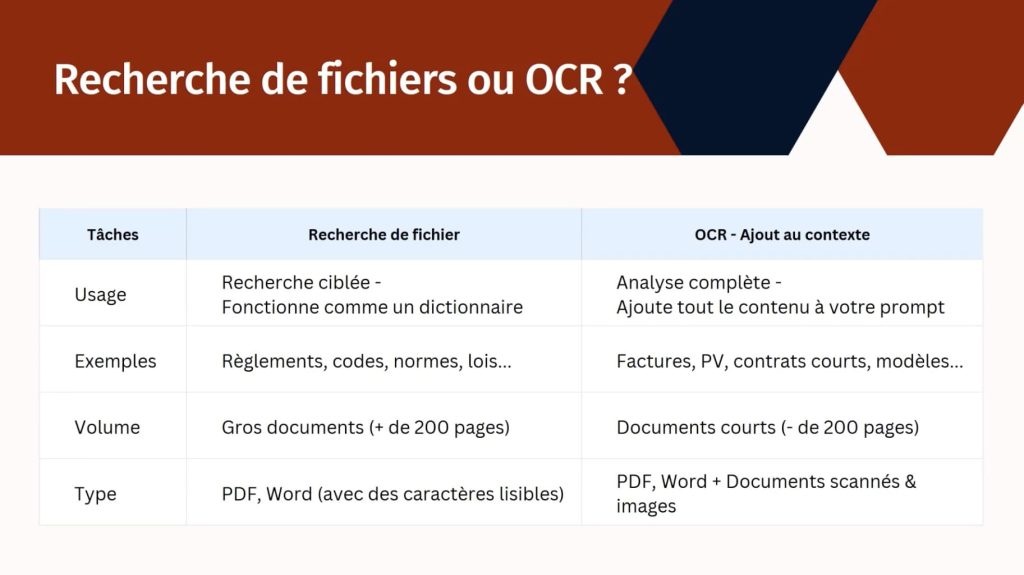
OCR file (default)
OCR stands for « optical character recognition ». This technology allows Munia to read text that exists as an image, such as in a scanned PDF where it is impossible to select text or run a Ctrl+F search.
This mode processes the file in its entirety, which is ideal when the full content is needed to answer correctly, for example to summarize a document or analyze a table.
Use it for:
- Word, Excel and editable PDF files
- Scanned documents (images of text)
- Files of roughly less than 200 pages
File search (for large documents)
This mode works like a dictionary: Munia does not analyze the whole document, but quickly targets the relevant passages based on the question asked. This makes it possible to work with files of several hundred pages without overloading the processing.
Use it for:
- Municipal by-laws
- Codes, standards and statutes
- Any document longer than 200 pages
Steps: upload a file in OCR mode
- Open a conversation in Munia.
- Click the paperclip icon in the input area.
- Select the file on your computer and confirm.
- Once uploaded, a blue square with the letter « T » appears on the file icon. This confirms that the file is indeed in OCR mode.
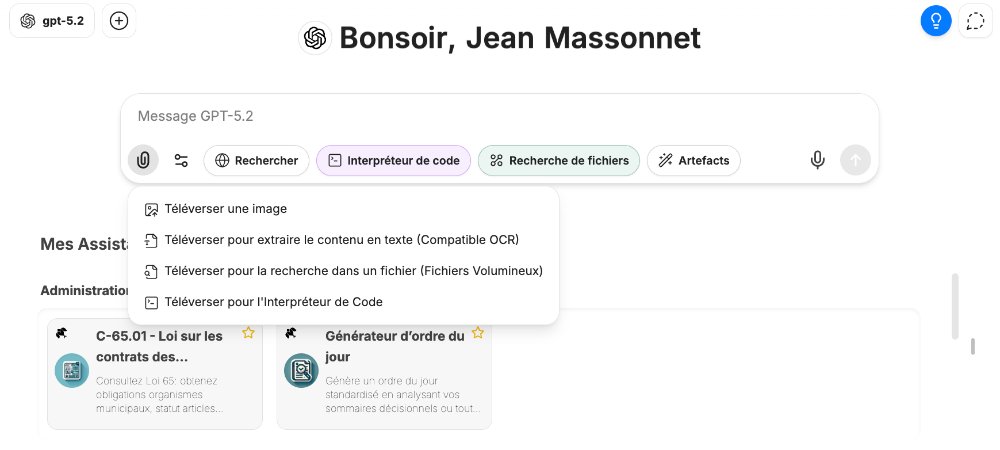
Steps: upload a file in File search mode
- Open a conversation in Munia.
- Find the « File search » button and turn it on. The icon changes colour to indicate that the mode is active.
- Then click the paperclip. A new option appears to upload the file in this high-volume mode.
- Select the document (for example, a municipal by-law or a legal code) and confirm the upload.
Expected result
After the upload, Munia has the context it needs to answer your questions while taking the supplied document into account. The method you choose directly affects the accuracy and relevance of the answers.
A simple rule to remember
Use OCR mode by default for most everyday files. Switch to File search only to consult large regulatory or legal documentation.
Go further 🚀
🎥 Next tutorial ➡️ 7 – Web Search