
Fixing the file upload error in Munia
Find out why some files cannot be uploaded to Munia and how to correct the problem quickly.
Updated on 2026-02-20
Understanding the error
When you see the message "An error occurred while uploading the file", the most common cause is that the file format is not compatible with Munia.

Note that audio files (.mp3, .wav, etc.) and email files (.msg, .eml) are not compatible with Munia.
For Office suite files, a Word file saved in the .doc format (the older format) will not be accepted by the platform. It must be in the .docx format. The same applies to Excel .xls files, which should be saved in the .xlsx format, and PowerPoint .ppt files, which should be in the .pptx format.
Steps to correct the problem
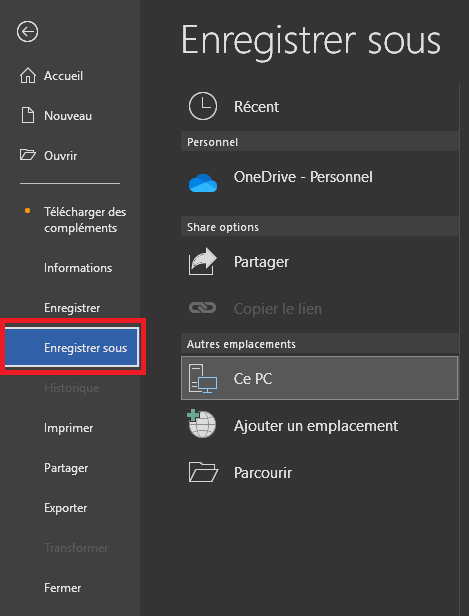
Step 1: Open the "Save As" function in Word, Excel or PowerPoint
Open the problem file in Word, Excel or PowerPoint. In the File menu, click Save As.
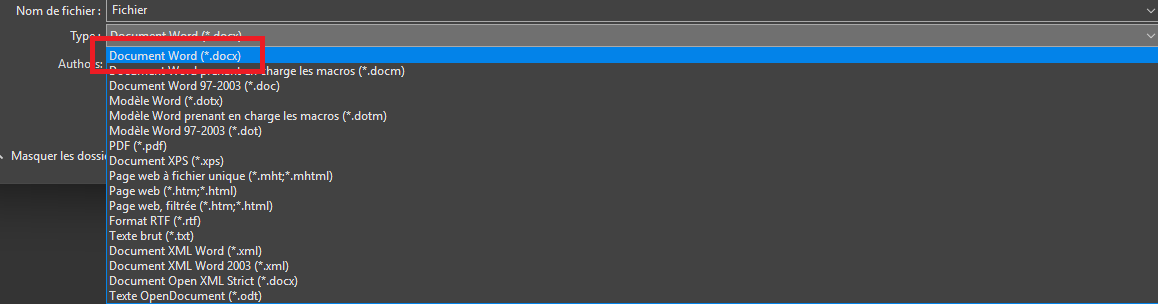
Step 2: Select the right format
In the file type drop-down list, choose the first option at the top (for Word files, select Word Document (.docx)).
Step 3: Upload the file to Munia again
Go back to Munia and upload the new .docx file. The error should no longer appear.