
Directory of models and assistants
Learn how to navigate the directory of AI models and assistants to save time on your daily municipal tasks.
Updated on 6 mars 2026
Expected result: By the end of this tutorial, you will be able to choose an AI model, find an assistant suited to your needs and use it effectively in a conversation.
Detailed overview
Opening the directory
The directory of models and assistants is accessible by clicking the button at the top left of the screen in the Munia platform.
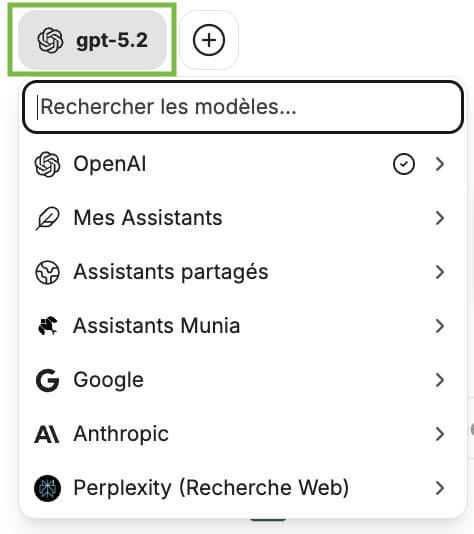
The available AI models
In this directory, you have access to the major artificial intelligence providers:
OpenAI (GPT line): one of the best-known providers, with several versions available.
Google (Gemini line): available in two variants.
- Gemini Pro: more thorough, takes longer to answer, but offers higher quality.
- Gemini Flash: faster, but less detailed in its answers.
Anthropic (Claude line): also in two variants.
- Claude Haiku: shorter, less detailed answers, but very fast.
- Claude Sonnet: the most complete and most precise model in this line.
Depending on your task, you can choose a fast model for simple questions or a more powerful model for in-depth analysis.
Understanding assistants
Assistants are preconfigured conversations. In practical terms, they are tools already set up with specific instructions for particular types of tasks. They are especially useful for repetitive tasks that take up a lot of your time.
There are three categories of assistants in Munia:
My assistants: the ones you created yourself.
Shared assistants: the ones a colleague or an administrator shared with you.
Munia assistants: designed by Carange Solutions, these assistants are general-purpose and intended for all municipal organizations. They cover, for example, provincial legislation or types of tasks common to several departments.
Finding an assistant: three methods
Method 1: The directory search bar
In the directory, use the search bar at the top to type a keyword (e.g.: "election"). The assistant's name and description are displayed to help you make the right choice.
Method 2: By category on the home page
At the bottom of the home page, all assistants are sorted by category. You can slide the list to the right to discover more. This view includes your assistants, those shared with you and the Munia assistants.
Method 3: The home page search bar
From the home page, use the search bar to search directly by keyword (e.g.: "Act respecting municipal taxation"). The assistant appears instantly and can be selected in one click.
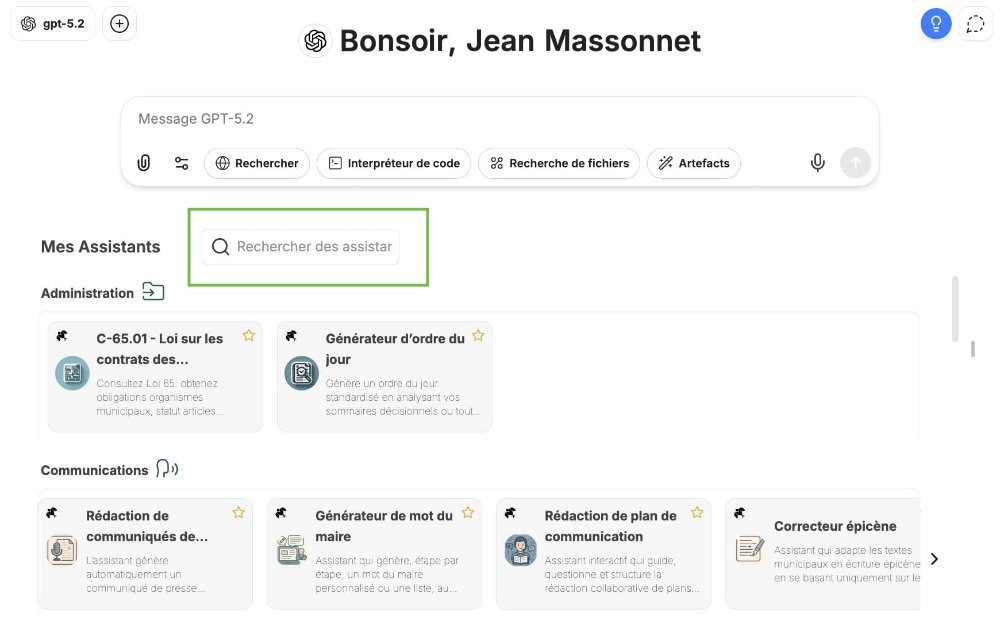
Adding an assistant to your favourites
To keep quick access to an assistant you use often, click the star icon. Once the star is filled in, the assistant appears in the "Favourites" category, always at the top of your list.
Switching between models and assistants in a conversation
Within the same conversation, you can change AI model or assistant at any time. The conversation context is kept, even if you move from one model to another. This gives you a lot of flexibility to adapt your tool to the stage of your work, without starting over.
Going further
🎥 Next tutorial ➡️ 4 – Sending your first message