Share an assistant
Learn how to easily share an assistant with other Munia users. Manage roles and access settings.
Updated on 2026-03-30
Steps to follow
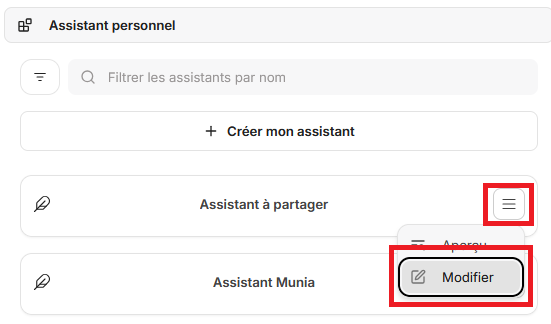
1. Open the assistant settings
- Find your assistant in the right-hand sidebar of the screen.
- Click the
 and "Edit" buttons.
2. Open the sharing window
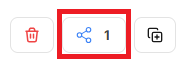
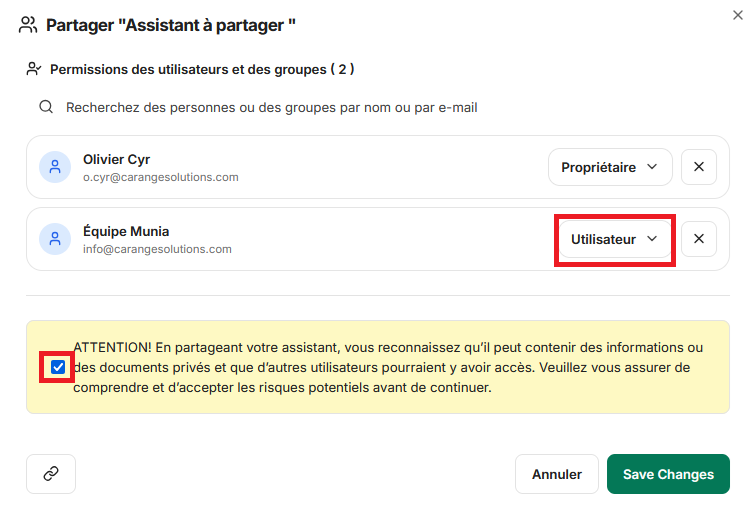
- On the settings screen, find the share button at the bottom left.
- Click this button to open the sharing options.
3. Assign access rights
- Enter the name of the user you want to share the assistant with.
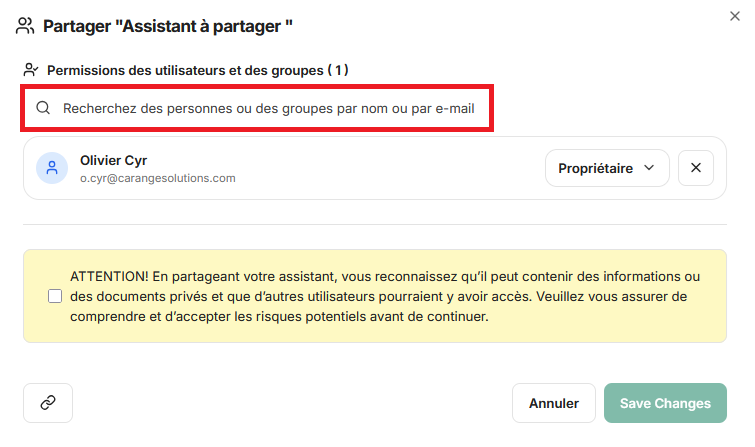
- Choose the appropriate permission level for each user:
- User: Can view and use the assistant, but cannot edit it.
- Editor: Can view, use and edit the assistant.
- Owner: Has full control over the assistant, including sharing management.
- Read the warning message and check the box at the bottom of the window.
- Click the "Save" button to complete the sharing.
Expected result
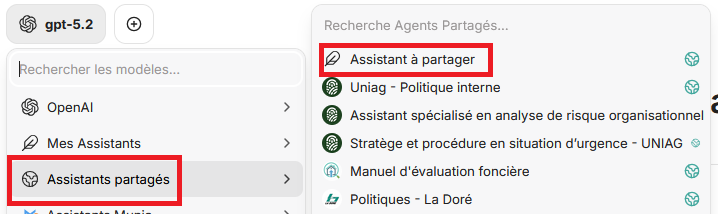
Once shared, the assistant automatically appears in the "Shared assistants" directory of the users concerned. This directory is located at the top left of their Munia screen.
Users can then access the assistant according to the rights you granted them.
Note
Only owners can share an assistant. If you are simply a user of a shared assistant, you will not be able to share it in turn.