Fixing the microphone error message (message too short)
Are you trying to use the microphone but getting a red error message saying the message is too short? Follow our recommendations to correct the problem in less than a minute.
Updated on 2026-02-17
The problem
When using the voice function in Munia, you receive an error message on a red background stating that your message is too short ("Message too short" or similar), even when you are speaking normally.
Cause of the problem
This bug occurs when the voice recognition settings are not properly synchronized with the French language. A simple reset resolves the problem.
Step-by-step solution
1. Open your account menu
Click your first and last name at the bottom left of the Munia screen.
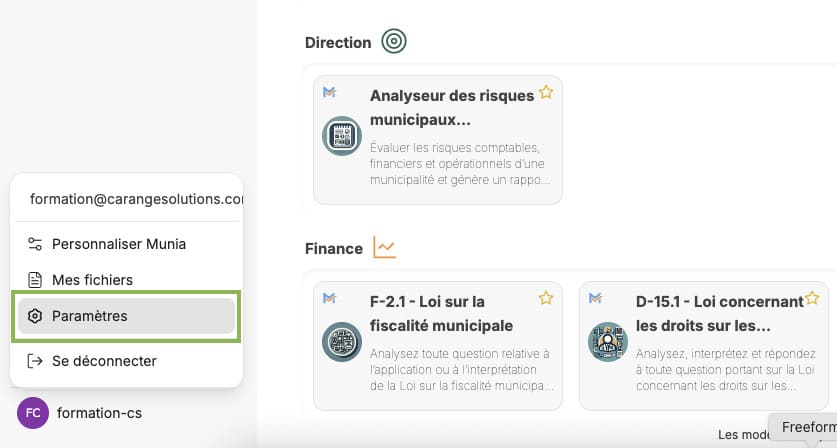
2. Open the settings
In the menu that appears, select "Settings".
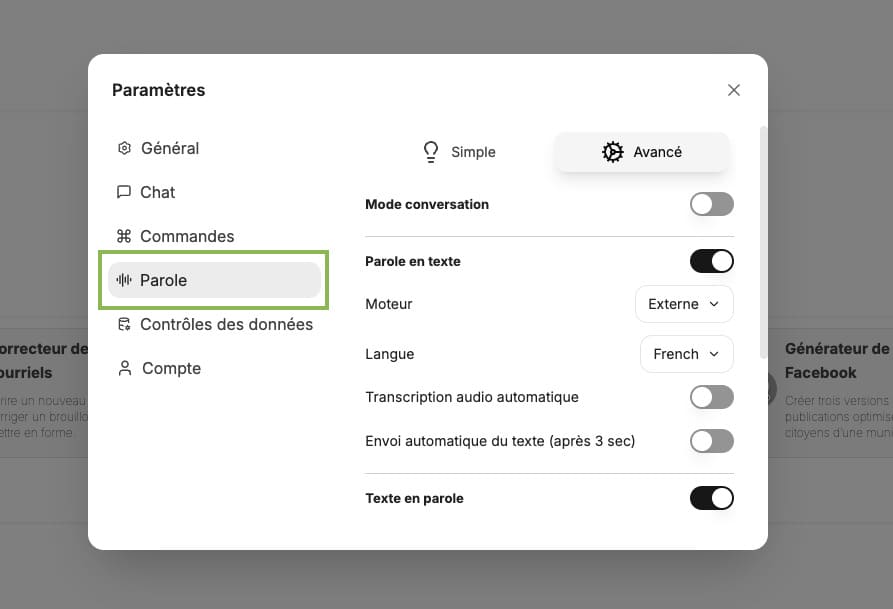
3. Go to the Speech tab
Once in the settings, click the "Speech" tab. It is the fourth tab in the settings menu.
4. Temporarily change the language
In the language selection section:
- Click the language drop-down menu
- Select any other language (for example: English, Spanish, etc.)
- Confirm your choice
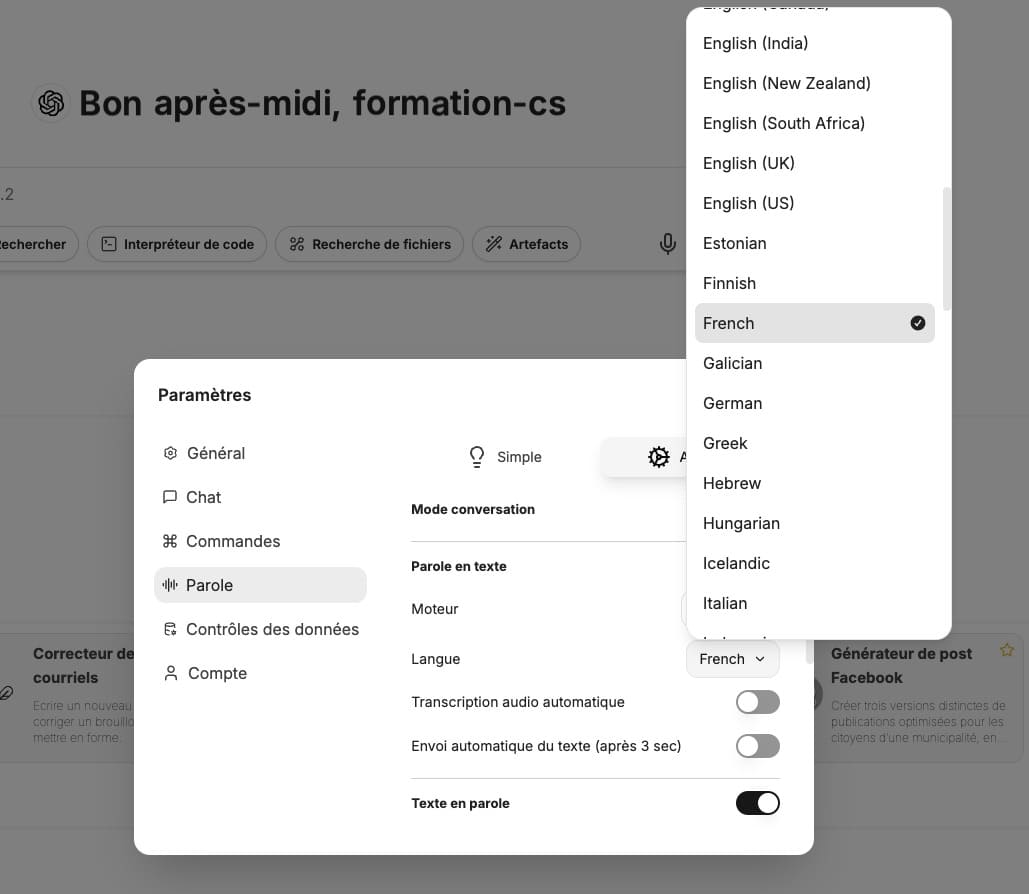
5. Switch back to French
Once the new language is selected:
- Reopen the language drop-down menu
- Select "French"
- Confirm your choice
6. Close the settings
Close the settings window by clicking the X or by clicking outside the window.
7. Test the microphone again
Try the voice function again. The microphone should now work properly without displaying the error message.
Why this solution works
This manipulation forces a reset of the voice recognition settings. By temporarily changing the language and then switching back to French, you allow Munia to properly reconfigure the voice detection settings.
If the problem persists
If the problem is still not resolved after following these steps:
- Check that your browser has permission to access your microphone
- Restart your browser
- Contact our support team through the chat built into Munia or by email